
Issue certificates to your Zoom attendees
Connect your Zoom account, link a meeting or webinar to a programme, and Creadefy issues certificates or badges to the people who attended. You choose who qualifies, and whether to review the list first.
Before you start
The Zoom integration is in Beta. You need:
- A Creadefy account with an approved organization. New here? Create a free account.
- A programme under that organization, with a group: an event or a course.
- A saved certificate or badge template, and enough credits.
- A Zoom account that hosts the meeting or webinar. You can only link sessions you host.
- A paid Zoom plan (Pro or higher) to issue. Webinars also need the Zoom Webinars add-on.
One more setting saves you work later. Turn on registration for the meeting in Zoom. Zoom then shares each attendee's name and email. Without it, many guests arrive with no email, and you would have to type it yourself.
Connect your Zoom account
- In Creadefy, open Integrations in the left menu and choose Zoom. Or go straight to the Zoom integration page.
- Select Connect Zoom.
- Zoom opens and asks you to sign in, if you are not signed in already. It then lists what Creadefy may read. Select Allow.
- Zoom sends you back to Creadefy. The page now shows Connected as with your Zoom email.
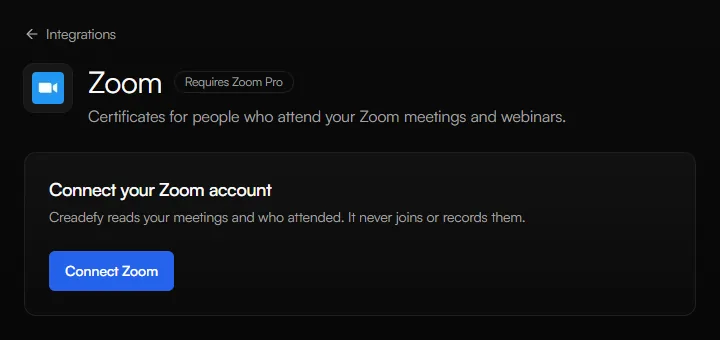
Creadefy only reads your meetings and who attended. It never joins, records, or changes a meeting. You can connect one Zoom account to one Creadefy account.
Link a meeting or webinar
A link tells Creadefy which meeting to watch, and where its attendees' credentials go.
- On the Zoom page, select Link a meeting.
- Under Zoom meeting, choose Meetings or Webinars and pick the session from the list. An instant meeting is not in the list: choose Enter a meeting ID, type the ID, and select Use ID.
- Choose the Programme and the Group that should receive the attendees.
- Choose Certificate or Badge, then the Template. Your own templates and Creadefy's library are both listed.
- Set Who qualifies: Anyone who joined, a minimum number of Minutes, or a minimum Percent of the session.
- Set After each session: Review first or Automatic. Start with Review first.
- Leave Email credentials to recipients on to email each person their credential. You can add your own subject and message.
- Select Link meeting.
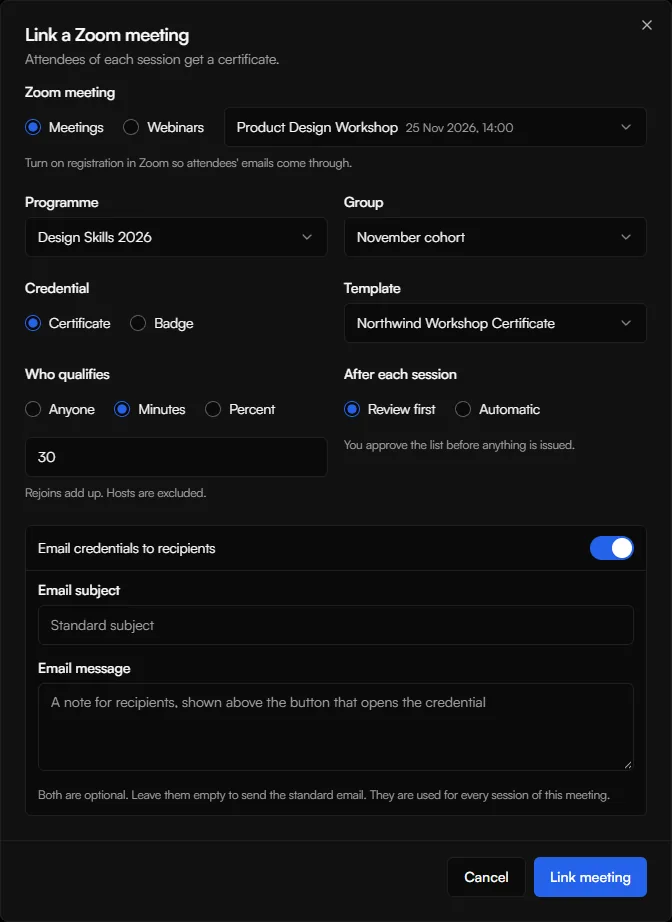
The programme, group, and template stay fixed once a link is saved. To use different ones, remove the link and create a new one. A recurring meeting needs only one link: every session of it is picked up.
Who qualifies and who is left out
| Rule | Who qualifies | Good for |
|---|---|---|
| Anyone | Everyone who joined, for any length of time. | Community calls and open sessions |
| Minutes | People who attended at least the minutes you set. If someone leaves and rejoins, their time adds up. | Workshops with a fixed minimum |
| Percent | People who attended at least that share of the session, from 1 to 100. | Sessions whose length varies |
The host, alternative hosts, and webinar panelists are left out automatically. Zoom does not tell us who was a co-host, so remove co-hosts yourself in the review list.
A guest with no email cannot receive a credential automatically. On a Review first link you can type their email in the review list. An Automatic link skips them.
After each session
When a linked session ends, Creadefy asks Zoom for the attendance list. Zoom usually has it within a few minutes. A large session can take longer.
| After each session | What happens |
|---|---|
| Review first | The session appears under To review, usually about 6 minutes after it ends. Nothing is issued until you approve the list. |
| Automatic | Credentials are issued a minute or two after the session ends. Anyone Zoom lists a little later is added automatically. With a Percent rule, issuing waits for the complete list, about 6 to 15 minutes. |
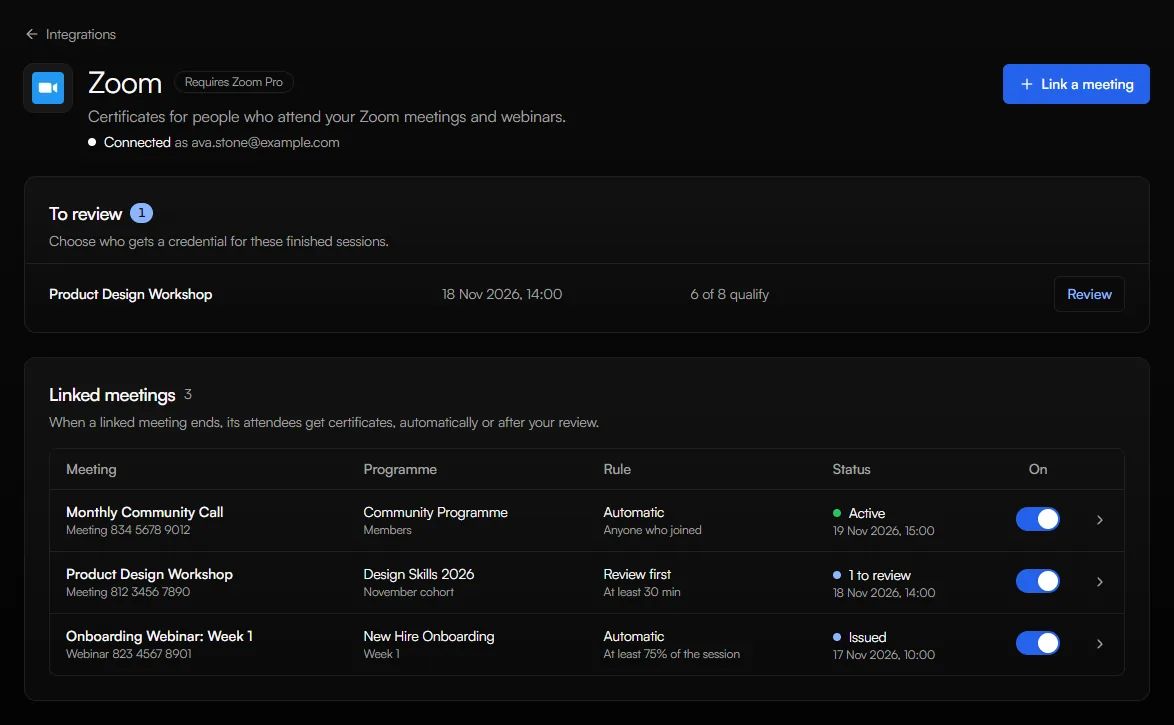
Each linked meeting shows the status of its latest session:
| Status | What it means |
|---|---|
| Active | The meeting is running now. |
| Waiting for attendance | The session ended and Creadefy is waiting for Zoom's list. |
| Ready to review | The list is ready. Open it and choose who gets a credential. The Linked meetings list shows this as a count, such as "1 to review". |
| Issuing | Credentials are being made. The page shows how many are done so far. |
| Issued | Credentials were issued. Open the meeting to see who received one. |
| Skipped | Nothing to issue: nobody attended besides the hosts, or Zoom had no attendance list. |
| Rejected | The session could not be read or issued. The reason is shown next to it. |
| Dismissed | You chose not to issue for this session. |
Review the attendee list
- Under To review, select Review next to the session.
- Check the list. Each person shows their minutes attended and a label: Qualifies, Too short, or No email. People who qualify are ticked already.
- Untick anyone who should not receive a credential, such as a co-host. Tick someone marked Too short if you want to include them.
- For a guest marked No email, type their email in the row to include them. You can add up to 100 emails in one review.
- Select the blue Issue credentials button. It shows how many will be issued, for example "Issue 6 credentials". To issue nothing, select Dismiss session.
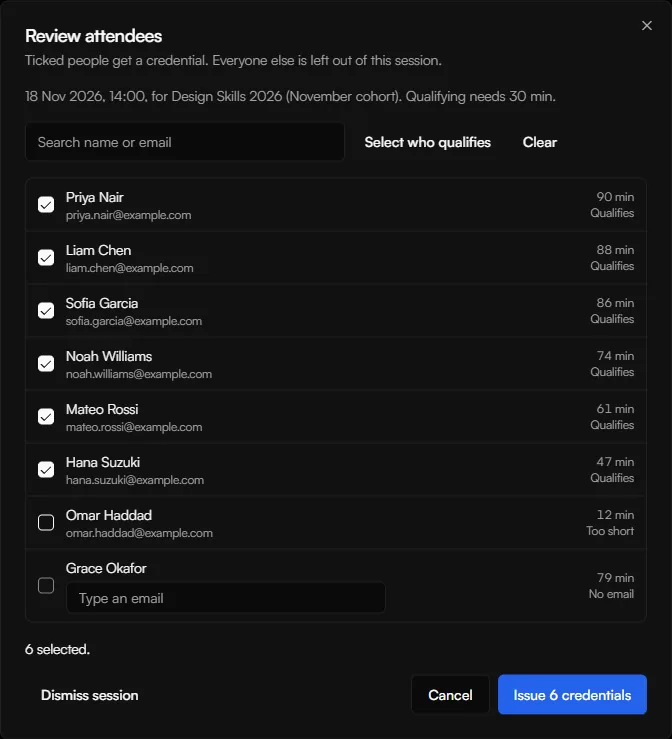
Review within 30 days. After that the list is dismissed and its attendees are deleted. Each credential uses one credit, so check your balance before a large session.
Change, pause, or remove a link
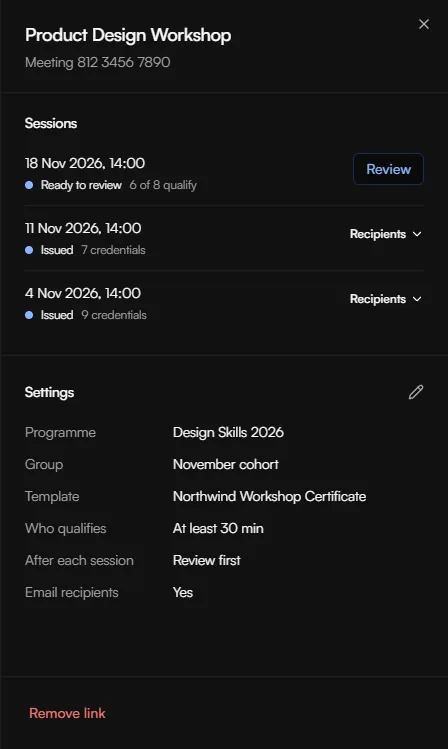
Select a linked meeting to open its panel. It shows the latest Sessions and the link's Settings.
- See who received a credential: open Recipients under an issued session.
- Change the rule, the mode, or the email: select the edit icon next to Settings, then Save changes. The new settings apply to future sessions.
- Pause a link: turn off its switch in the On column of the Linked meetings list. Sessions that end while it is off are never issued later.
- Stop for good: select Remove link. Issued credentials stay.
You can link up to 50 meetings or webinars per Zoom account, and issue up to 5,000 credentials for one session.
Add attendees from a past session
You can also bring in the people who attended a session that has already ended, without linking it.
- Open the programme and go to Recipients.
- Choose Import Recipients, then Import from Zoom in the dialog.
- Pick the meeting or webinar and the Session. Add Minimum minutes if you want only people who stayed that long.
- Select Load attendees, check the list, and finish the import.
This adds them as recipients. It does not issue anything. Issue to them from the programme's Issue tab when you are ready. Zoom keeps past meetings for about six months.
Disconnect Zoom or remove the app
You can stop the integration from either side. Both do the same thing.
| Where | How |
|---|---|
| In Creadefy | Open the Zoom integration page, scroll to Disconnect Zoom, select Disconnect, and confirm. |
| In Zoom | Sign in to the Zoom App Marketplace, open Manage, then Added Apps, and select Remove next to Creadefy. |
When you disconnect or remove the app:
- Creadefy deletes the Zoom connection, your linked meetings, their session history, and their attendee lists.
- Creadefy's access to your Zoom account ends. Nothing more is read from Zoom.
- Credentials that were already issued stay valid, and their recipients stay in your programme. Manage those in the programme dashboard.
You can connect again at any time. You will need to link your meetings again.
What Creadefy reads and keeps
| From Zoom | Why | How long it is kept |
|---|---|---|
| Your Zoom name, email, and account identifiers | To show which Zoom account is connected. | Until you disconnect. |
| The meetings and webinars you host | So you can pick one to link. | Only the ones you link, until you remove the link. |
| Attendance for sessions you link or import from: name, email, and minutes attended | To work out who qualifies and to show you the list. | Linked sessions: 30 days after the session, then deleted. Imports: the list is not kept. Only the people you import are saved, as recipients. |
| Webinar panelists | To leave panelists out of the attendee list. | Not kept as a separate list. |
Access is read-only. Creadefy cannot create, change, or delete anything in your Zoom account, and it never joins or records a meeting. The access granted by Zoom is stored encrypted.
People you issue a credential to become recipients in your programme, like recipients you add by hand. You are responsible for telling your attendees that they may receive a credential. Read more in our Privacy Policy.
Troubleshooting
| What you see | What to do |
|---|---|
| "This account is on Zoom's free plan" after connecting | Zoom is connected, but Zoom only shares attendance with paid plans. Upgrade the Zoom account to Pro or higher to issue. |
| A session shows Rejected with "Zoom attendance needs a paid Zoom plan" | Same cause. Nothing was issued and no credit was used. |
| "You can only link meetings and webinars you host" | Connect the Zoom account that hosts the session, or ask the host to connect theirs. |
| "That Zoom account is already connected to another Creadefy account" | A Zoom account can be connected to one Creadefy account. Disconnect it there first. |
| The page shows Reconnect needed | Zoom ended the connection. This can happen after a long time without use. Select Reconnect Zoom. Your links are kept. |
| A session shows Skipped | Nobody attended besides the hosts, or Zoom had no list for it. If people did attend, add them with Import from Zoom. |
| Attendees have no email | Turn on registration for the meeting in Zoom. For this session, type the emails in the review list. |
| Someone is missing from the list | Zoom sometimes adds people late. Add them with Import from Zoom, then issue to them from the programme. |
| Issuing failed for lack of credits | Add credits or upgrade your plan, then review the session again and issue. |
Still stuck? Contact us and tell us the meeting and the time of the session.