
Create a course and issue to graduates
Use Course or achievement for a course, cohort, certification, or assessed award. Describe what learners completed so the credential makes sense beyond your classroom.
Create the programme
- Open Issue → Courses and start a programme. From the combined list, choose Course or achievement.
- Select the approved organization issuer. Enter the Programme name, choose its Status and Type, and mark it Free or Paid.
- Write the required Description, up to 650 characters. Describe the learning or achievement in words a verifier will understand.
- Under Completion & delivery, set the required Date of completion. Check Virtual and add a location or platform when useful.
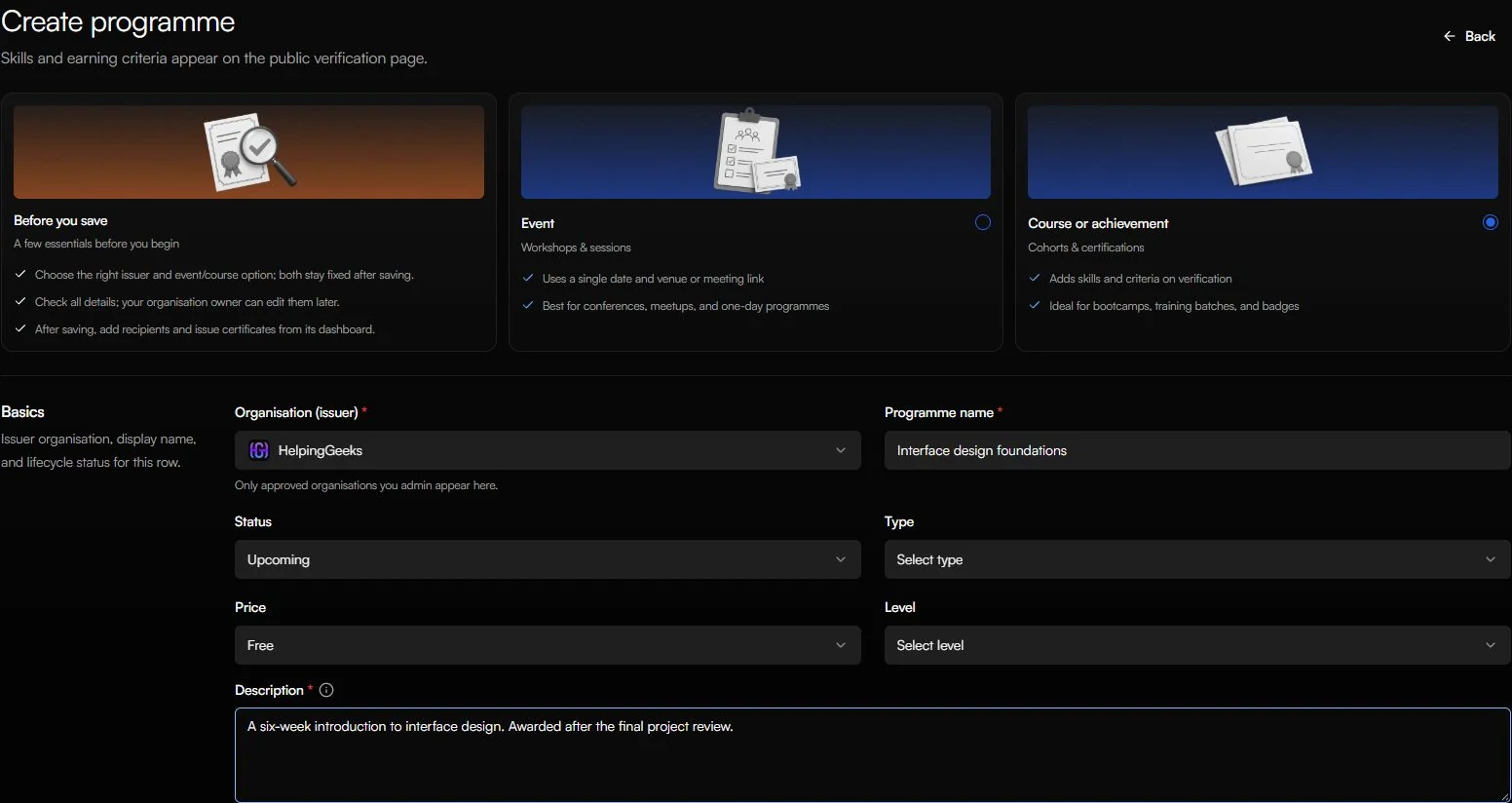
Course categories include Achievement, Course, Certification, Professional license, Programme, Bootcamp, Cohort-based programme, Micro-credential, Digital badge, Diploma, Degree pathway, Apprenticeship, Internship, Membership pathway, Continuing education, Training programme, Assessment-only pathway, Residency, Other.
Explain the award
| Optional detail | A useful example |
|---|---|
| Level | Foundational, Intermediate, or the level that reflects the actual work. |
| Skills | Specific skills practiced or assessed, such as semantic HTML, accessibility testing, and responsive layout. |
| Earning criteria | Completed the final project, passed the assessment, or met your attendance requirement. Choose the relevant criterion type and describe the requirement. |
| Duration | Enter an amount and a unit together, such as 6 weeks. |
| Programme URL | A public course page with a syllabus or award explanation. |
For Skills, start typing and choose a matching suggestion. If there is no catalog match, press Enter to add your own skill. Check that it appears as a tag before adding the next one.
For each earning criterion, choose its Type, write a Description, add a public link if useful, and select Add. Check that it appears in the added criteria list; typing into the draft form alone does not add it.
You can add up to 24 skills and 10 earning criteria. Use links a verifier can access, and avoid private learner submissions or personal scores.
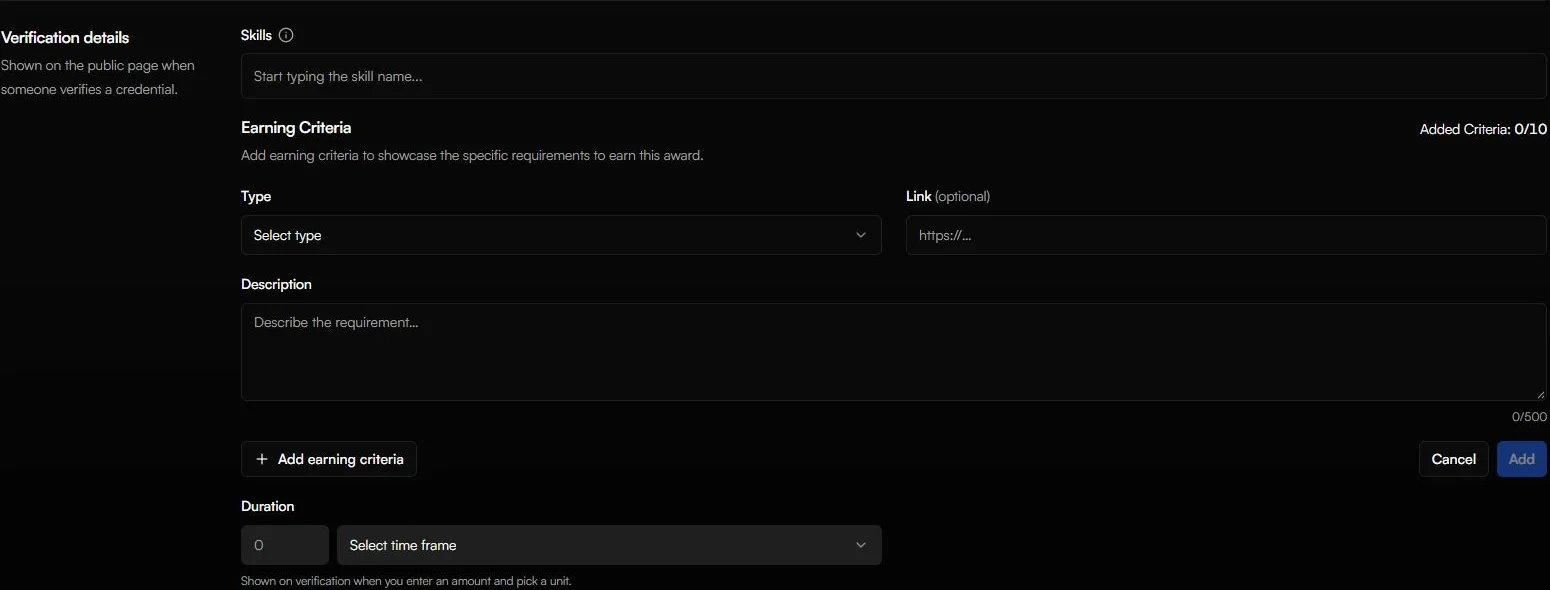
For a six-week design course, write a concrete requirement such as "Submitted an accessible prototype and completed the final review." Only use that wording if it reflects your actual award policy.
Organize cohorts in batches
Saving creates a Default Batch. Use it for a single cohort, or open Batches → Create batch for named cohorts such as "November 2026" or "Weekend cohort".
Add a description and batch start/end dates when helpful. Batch names and dates can appear on the verification page, so keep internal labels and private notes out of those fields.
Use batches to select a completion group without mixing it with another intake. Keep the course title stable and put the intake label in the batch.
Add the completion roster
Confirm the final completion list with whoever runs the course. Import those recipients into the correct batch using first name and email, with last name when available.
Check spellings against the names learners want on their credentials. Review the group assignment and import Results before moving to Issue. Adding someone to a batch does not award a certificate.
Issue and deliver
- Open the programme's Issue tab. Choose Certificates or Badges and the saved completion template.
- Filter to the right batch, select eligible graduates, and check the count.
- Check the programme completion date and the date on a generated test credential. The current generation workflow uses the job's run date for issuance. If the award expires, check the expiry record in Manage before delivery.
- Review email wording and decide whether to auto-send or send later from Manage. For a scheduled release, confirm the timezone.
- Inspect a small generated batch, then issue the remaining recipients. Check Jobs and Manage for results.
The public verification page can show the course description, skills, criteria, duration, level, and batch details. These details explain the award even when the PNG uses a simple design with only the name and QR as dynamic fields.