
Create your account and finish setup
Create a Creadefy account with Google, GitHub, or email and password. Then choose your username and create an organization or join your team before issuing credentials.
Create an account
Open Create account. You can use Google, GitHub, or your email and a password. Use an inbox you will continue to have access to.
- For email signup, enter your first name, email, and a password of at least eight characters. Last name is optional. Enter the same password in Confirm Password.
- Read the linked Terms of Service and Privacy Policy, then select Create account.
- Open the verification message in that inbox and follow its link. If the message has not arrived, check spam and confirm the address you entered before requesting another message.
- Sign in to continue to the dashboard. For Google or GitHub, finish the provider's sign-in flow and return to Creadefy.
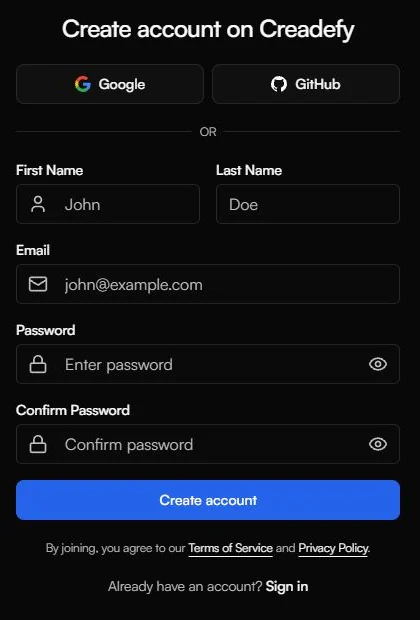
If the address already has an account, use Sign in. Use the password recovery option if you have forgotten your password. Creating another account will leave your existing templates and credentials in the first account.
Choose your profile
The first screen says Welcome to Creadefy!. Pick a unique username with 3–20 characters: lowercase letters, numbers, and underscores. Wait for the availability check, then select Complete Setup.
A profile picture is optional. Creadefy can use your Google or GitHub photo, or you can choose Upload Picture or Change Picture.

Set up your issuer
The next step is Create Organisation. Select Get Started to submit your organization. You will need its name, website, and proof that you are authorized to act for it.
If you are joining a team, ask an admin for an email invitation. Only owners and admins can issue for an approved organization. A member can view its workspace.
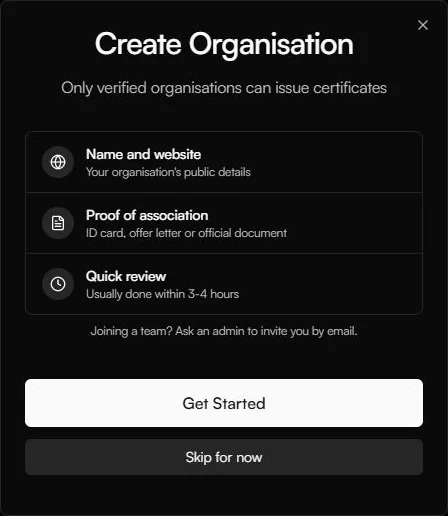
Skip for now lets you continue exploring. It does not remove the organization approval requirement. If a request is pending, continue designing your template while it is reviewed.
Finish onboarding
You're all set! lists your next actions: organization, template, and event. Open a row to go to that part of the dashboard, choose Take a Quick Tour, or choose Go to dashboard.
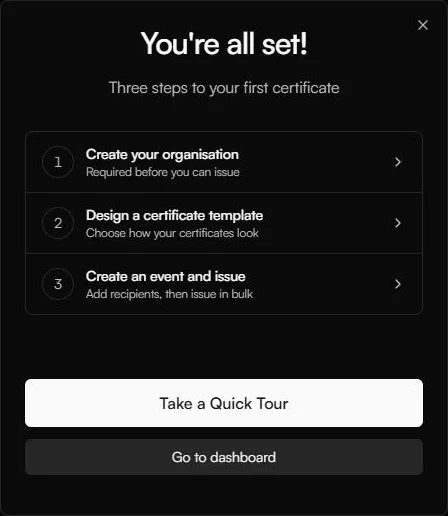
You can find the walkthrough again in Help. Keep these docs open alongside the product when you are ready to issue your first batch.