
Use a design you already have
Keep the artwork you made in another design tool. Export it as an image, bring it into Creadefy, and add the fields that change for each recipient.
Prepare the artwork
Export a clear PNG, JPG, or WebP from your design tool. PNG is a good choice for text and logos. Use the original export rather than a screenshot of the design.
Remove any sample recipient name and leave that area blank. Leave a clear area for the verification QR code too. Text baked into this image stays the same on every credential; Creadefy cannot replace a name that is already part of the artwork.
The image uploader accepts files up to 4 MB. If your design is larger, optimize the export without blurring its text. The editor also accepts GIF images, but a static image is a simpler background for a credential.
Add it to the editor
- Create a certificate or badge in Templates.
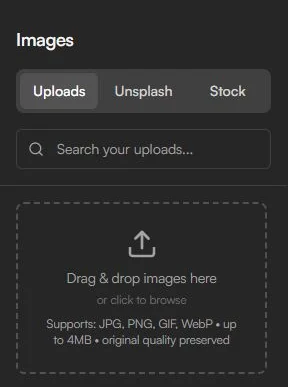
- Open Images → Uploads.
- Drag your file into Drag & drop images here, or use Choose Files. The uploaded image is added to the canvas.
- Select the image to open its image controls in Properties.
Use it as the background
Select Fit to canvas to scale the image inside the current canvas. If the artwork and canvas have different proportions, you may see empty space around it.
Use Crop excess to remove empty canvas space around the image. This adjusts the canvas around the image; it does not cut into the image itself. You can also use Resize Canvas to match your original export's proportions.
Open Layers and keep the artwork below your text and dynamic elements. If a field disappears after adding the image, check the layer order. Treat the image as your background layer, then place the changing content above it.
Add the name and QR
Open Dynamic and add Recipient Name to the blank name area. Choose its font, size, and text alignment so the generated name fits your layout.
Add QR Code to the space you left clear. These two dynamic elements are required before saving the template. The QR drawn in the editor is a placeholder; the issued credential receives its own code.
You can keep dates, titles, and signatures in the artwork if they are the same for the whole batch. If a value needs to change between issuance runs, use a supported dynamic field or create another saved design. See Dynamic fields and name alignment.
Check before issuing
Zoom in on the image to check text sharpness. Make sure the dynamic name covers only the blank space, with no old sample name showing behind it. Save the template, then generate a small batch in your event or course.
Open a generated PNG, check the longest name, and scan the QR. An imported background should look like your original artwork with the correct personal details added.