
Content
Templates
A template is the foundation of every credential you issue on Creadefy. It defines the visual design — background image, fonts, colours, and layout — and the dynamic fields that get filled in with each recipient’s personalised data at generation time. One template can power thousands of unique, personalised credentials.
Certificate vs. Badge
Creadefy supports two digital credential template types. Choose based on the format that best communicates the achievement.
Certificate
Landscape (e.g. 1200×850 px)
Course completions, training achievements, academic qualifications, event participation.
Typically formal in layout with a prominent recipient name, issuer signature area, and date.
Badge
Square (e.g. 800×800 px)
Skill endorsements, community memberships, micro-credentials, gamification rewards.
Compact and iconic — designed to be shared as a profile picture or inline image.
Dynamic Fields
Dynamic fields are structured placeholders in your template design. Creadefy replaces them with real recipient, event, issuer, and credential data at generation time. You define each field once, then map it to a CSV column or a manual form input.
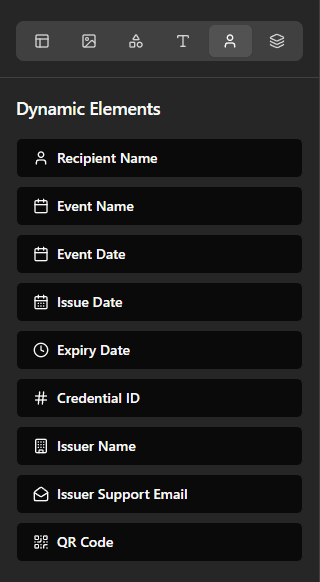
Recipient Name — The full name of the person receiving the credential. This is the main personalization field and should match the recipient’s display name.
Event Name — The course, event, program, or award title associated with the credential. Use a clear name so recipients and verifiers understand the achievement.
Event Date — The date of the event, completion, or recognition milestone linked to the credential. This helps place the achievement in the correct timeline.
Issuer Name — The organization, institution, or individual issuing the credential. This field reinforces trust and clearly identifies the source of the award.
Issue Date — The date the credential was officially issued. You can also pair this with an expiry date for certifications that have a validity period.
Credential ID — A unique identifier for each issued credential. It supports verification, support requests, audit trails, and internal record lookup.
Verification QR / URL — Auto-generated by Creadefy and linked to the credential’s public verification page. Verifiers can scan or open it to confirm authenticity instantly.
Issuer Support Email — A public contact email for recipient or verifier questions. Use a monitored support inbox that belongs to the issuing organization.
Design Best Practices
Use 1–2 fonts maximum. Keep typographic hierarchy clear: title > recipient name > supporting text.
Make sure to check the Dynamic Fields alignment (like "RecipentName") > (Right, Center, Left) in the template editor to ensure they fit well with your design when generated.
Leave 40–60 px safe margins on all edges to prevent clipping in email clients and screenshots.
Keep the verification QR code area uncluttered so scanners can read it cleanly on any background.
Use high-contrast text against all backgrounds — WCAG AA contrast ratio (4.5:1) is a good baseline.
Design at 2× resolution (e.g. 2400×1700 px for a certificate) so the PNG looks sharp on HiDPI screens.
Avoid placing critical information near the edges — some email clients add their own padding.
Note: You can create multiple templates per event or cohort — for example, separate designs for speakers, attendees, and volunteers. All templates in the same account share the same recipient lists and issuance workflow.