
Design a certificate with AI
Choose the purpose, layout, colors, and branding. AI creates the artwork; the certificate's text and fields stay editable in Creadefy.
Check your allowance
Open Templates → Generate with AI. The studio shows your remaining generations. Free accounts with an approved organization receive 10 AI generations a month. Pro allowances depend on the plan.
If you see Create your organisation first or Get your organisation approved, follow that action and return after approval. AI generations and credential issuance credits are different allowances.
Choose your design options
- Under What it's for, choose a Certificate type and Field. For a custom certificate, enter the title you want to use.
- Choose a layout and Landscape or Portrait. Pick a layout with enough space for your title and recipient name.
- Choose a style and colors. When organization branding is available, you can start with its logo colors. Check that the text remains readable.
- Under Fields, keep Recipient Name and QR Code. Add dates or an event name only if the design needs them.
- Review your organization wording, logo option, and signatories. Check names and job titles before putting them in the design.
- Choose finishing touches such as borders, a seal, or accents where the layout supports them. Leave enough quiet space around the name and QR.
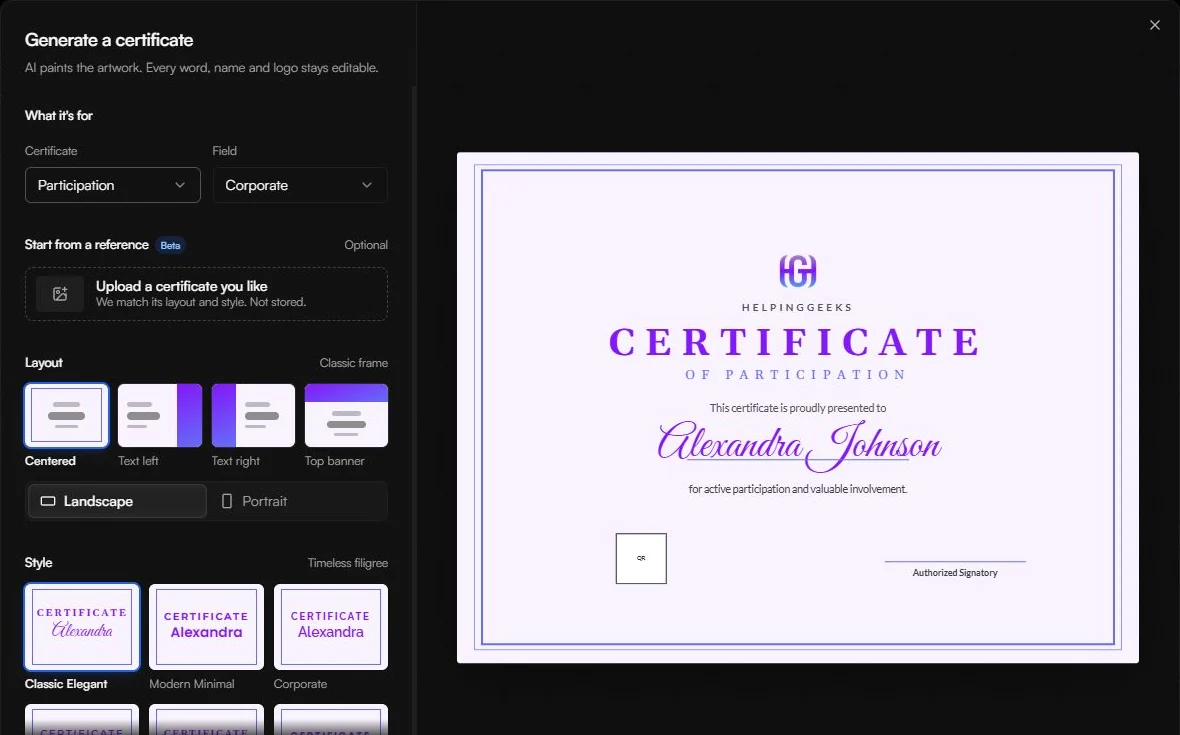
This designer uses choices in the form rather than a free-text prompt. For example, start a course completion certificate with a readable layout, your organization colors, and only the fields your team needs.
Use a reference image
Start from a reference is optional. Use an image you own or have permission to use. It guides the layout and visual direction. Review the result carefully; a generated design may differ from the reference.
With a reference selected, the form adapts its layout choices and can offer colors from that image. Wait for the image to finish processing before generating.
If you want to preserve your existing design exactly, use Images → Uploads in the normal editor instead. The existing-design guide explains that route.
Generate and open in the editor
Select Generate certificate and wait for the result. Use Regenerate for another version if you have allowance remaining, or return to Options to adjust your choices.
When you want to use the result, select Open in editor. Keep working in the same browser so the draft can open. Then adjust the text, field positions, and artwork, give the template a useful name, and save.
Review before saving
Read every line. Check that organization names and signatures are correct, the name field has room for long names, and the QR area stays clear. The artwork is a design starting point; you are responsible for the wording and award details you issue.
Saving a template does not send certificates. Select it later in an event or course, choose recipients, and issue a small batch to check the generated result.