
Use the event or course dashboard
Open an event or course from Issue. Add people in Recipients, generate or schedule credentials in Issue, and send, download, or revoke generated awards in Manage.
Know which tab to use
| Tab | Use it to |
|---|---|
| Overview | Review the programme details and counts. Course details also include skills and earning criteria. |
| Groups / Batches | Organize people by event role or course intake. Courses call these Batches. |
| Recipients | Add, import, edit, and filter the people who may receive a credential. |
| Issue | Choose a template, select recipients, set dates and emails, and issue or schedule. Open Jobs for progress. |
| Manage | Find credentials already generated. Preview, email, download, revoke, or restore them. |
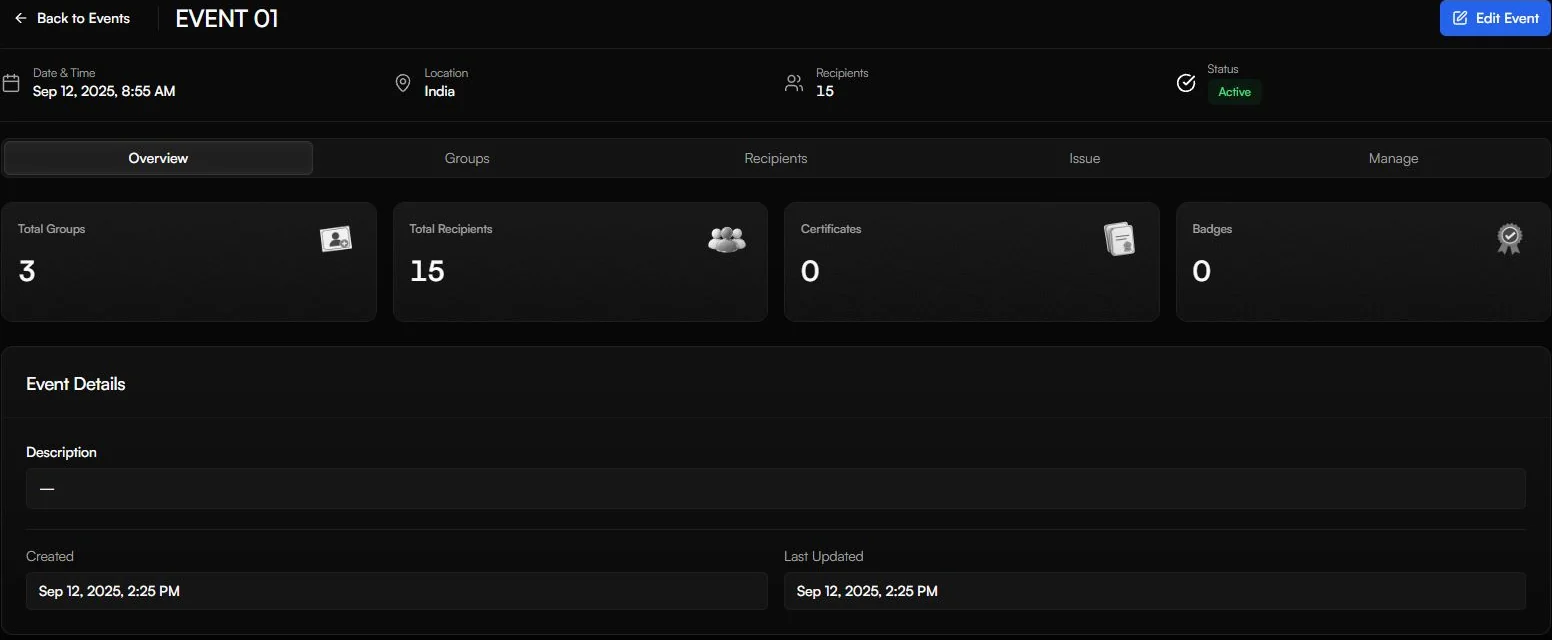
A programme status such as Upcoming or Completed describes the event or course. A credential status describes an individual award. Setting the programme to Completed does not issue its credentials.
Create useful groups and batches
Use the automatically created Default Batch when one recipient list is enough. Add groups when you need a different selection, design, or release date.
In Groups or Batches, choose Create group or Create batch. Enter the name, group type, and an optional description. For course batches, you can also add start and end dates. Use names your team can recognize quickly.
For events, Attendees, Speakers, and Volunteers make issuance choices clear. For courses, use cohort names such as November 2026. Batch names and dates can appear publicly, so keep confidential notes elsewhere.
Use Manage recipients on a group to open Recipients with that group selected. Check the assignment when adding people or importing a file; the group name alone does not select a template for issuance.
Work with issued credentials
Search and filter in Manage when a recipient asks for their link or a correction. Check the recipient, template, and status before selecting an action.
For missing emails, send or resend the existing credential. For offline distribution, download the file or a ZIP. For an award that should no longer be valid, use Revoke and enter a clear reason.
To set a record's expiry, open its actions, choose Edit Details → Expiry, pick the date, and select Update Expiry Date. Check the saved Current Expiry Date. This changes the record rather than redrawing the PNG.
Check access and ownership
Organization owners and admins can manage groups, recipients, and issuance. Members can view. The organization owner controls changes to the programme itself.
If an action is unavailable, check your organization role and whether the organization is approved. If a programme needs another issuer or needs to change from Event to Course, create the correct programme; those two choices are fixed after creation.
A routine for each issuance run
- Check the programme name and organization in Overview.
- Confirm the group or cohort and review its recipient names and emails.
- Choose the right saved design in Issue and check the selected count.
- Inspect a small generated batch, then complete the remaining run.
- Read Jobs for failures and Manage for the generated credentials. Send delivery emails if you chose to review first.
Use one clear group and template choice at a time. This makes it easier to spot who has been issued to and to handle a single missed recipient later.